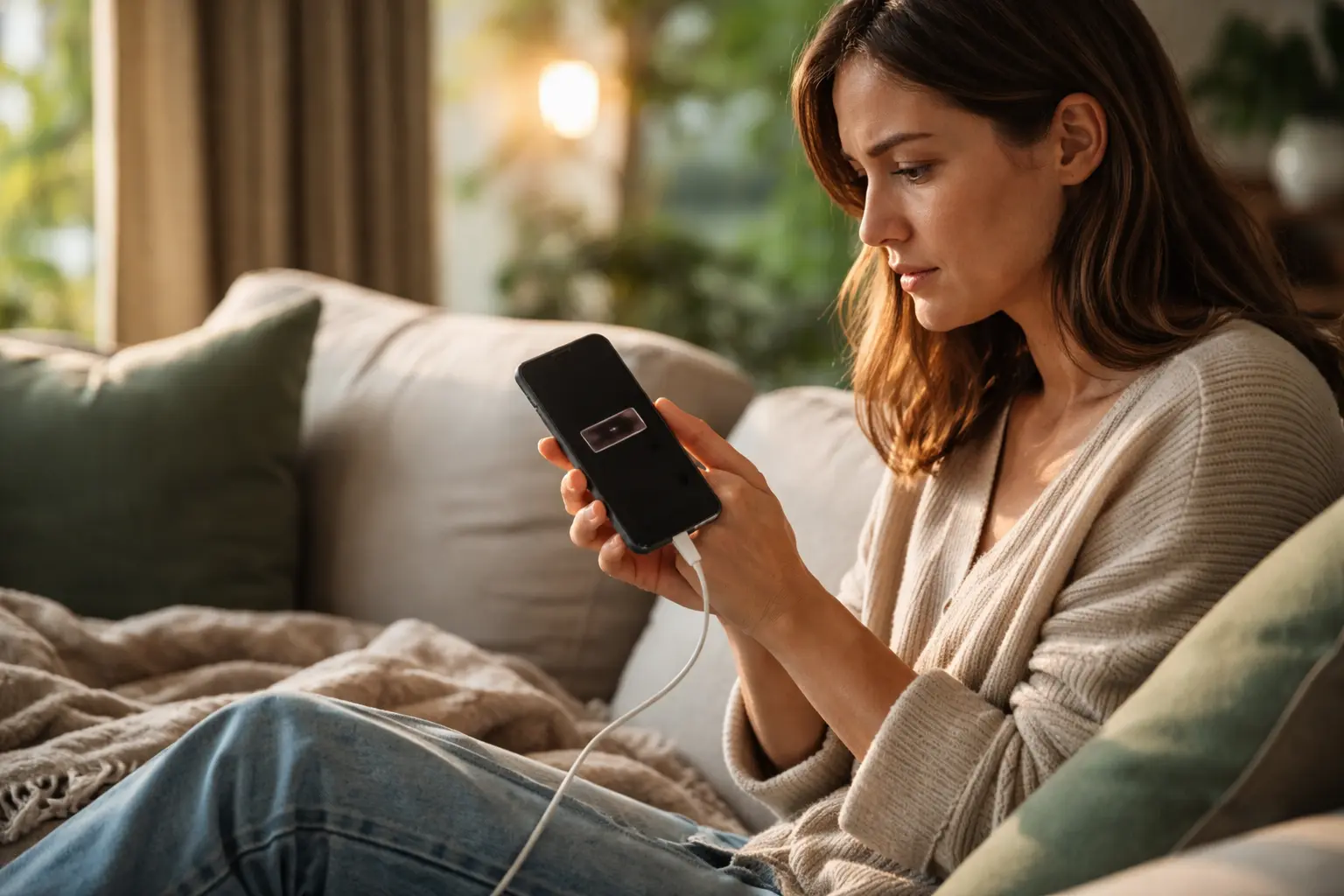
Your phone dies by afternoon and you’re stuck without a way to call for help or stay connected, but it doesn’t have to be this way – learn exactly how to extend smartphone battery life so you can actually get through your day without anxiety.
Optimize screen brightness
Your phone’s screen is the biggest battery drain, and many seniors don’t realize how much power it’s consuming just sitting in their pocket. When you walk outside on a sunny day, your phone automatically cranks up the brightness to compete with the sun, which can drain your battery by 20 to 30 percent in just a few hours. Instead of letting your device control this, take charge yourself. Open your settings and manually reduce brightness to around 30 to 40 percent for indoor use, then enable automatic brightness adjustment so your phone learns to adapt without wasting energy. A practical example: Margaret, a 68-year-old grandmother, was frustrated that her phone died before her afternoon video calls with her grandchildren. After lowering her brightness and enabling auto-adjust, she gained nearly four extra hours of battery life. One common mistake seniors make is keeping brightness at maximum all day out of habit, thinking it helps them see better. The truth is, your eyes adjust quickly to lower brightness, and you’ll barely notice the difference while your battery thanks you.
- Lower screen brightness to save battery
- Set brightness to automatic mode for efficiency
- Avoid exposing the screen to direct sunlight for prolonged periods
Close unused apps
Apps running in the background are like leaving lights on in rooms you’re not using, and they quietly drain your battery all day long. When you switch between apps on your phone, many of them don’t actually close – they keep running, checking for updates, refreshing content, and using location services without you knowing. This is especially true for social media apps, weather apps, and email clients that constantly sync data. Take a few minutes to review which apps you actually use daily versus which ones you opened once and forgot about. If you have 15 apps running in the background, you could be losing 30 to 40 percent of your battery life to apps you’re not even thinking about. The good news is the fix is simple: regularly swipe away apps from your multitasking window, or better yet, go into your phone’s settings and disable background app refresh for apps you don’t need constant updates from. A real scenario: Robert, 72, had apps like a weather service he never checked, three different news apps, and a fitness tracker all refreshing simultaneously. After closing unused apps and disabling background refresh, his battery lasted nearly a full day longer. The key is being intentional about which apps deserve access to your battery.
📘 Fix your day in under 2 minuteschoose where to begin:
Disable unnecessary features
Bluetooth, Wi-Fi, and GPS are powerful tools, but they’re also power-hungry features that drain your battery even when you’re not actively using them. Think of these features like having your car’s engine running while you’re parked in the driveway – it’s using fuel for nothing. Many seniors leave Bluetooth on all day hoping it will connect to a hearing aid or smartwatch, but if that device isn’t nearby, Bluetooth is just broadcasting a signal into empty air and burning battery. The same goes for Wi-Fi – your phone is constantly scanning for networks and trying to connect, which takes energy. GPS is perhaps the worst offender, as it uses your phone’s location services to pinpoint exactly where you are, which requires significant power. A practical approach: turn off these features when you leave home, then turn them back on only when you need them. For example, if you’re going to the grocery store and don’t need GPS directions, leave it off. If you’re sitting at home with your Wi-Fi router, keep Wi-Fi on but turn off Bluetooth unless you’re actively using a connected device. One common mistake is leaving location services on for apps that don’t really need it – like a news app or a game. Go into your settings and set location access to ‘only while using the app’ or ‘never’ for apps that don’t require it. This simple adjustment can extend your battery by several hours.
Enable low power mode
Low power mode is like putting your phone on a smart diet – it limits background activity, reduces performance slightly, and stretches your battery to last much longer. When you enable low power mode, your phone makes intelligent adjustments automatically: it slows down app refreshes, reduces screen animation, limits email fetching, and caps processor speed. The beauty of low power mode is that you barely notice the difference in daily use, but your battery life can jump from six hours to ten or even twelve hours. Most seniors find that low power mode is perfect for their actual usage patterns, since they’re not playing demanding games or streaming video all day. You can typically find low power mode in your settings under battery or battery and device care, and you can set it to turn on automatically when your battery drops to 20 percent, or you can enable it manually right now. A practical scenario: Helen, 70, enabled low power mode at the start of her day and found she could go from morning through evening without charging. She could still make calls, send texts, check email, and browse the web – everything she actually needed to do. The only difference was that animations were slightly less smooth and photos took a moment longer to load, but these minor trade-offs meant she never had battery anxiety again. This is one of the most underutilized features that could transform how seniors experience their phones.
Invest in a portable charger
Even with all these battery-saving tips, sometimes you need backup power, and a portable charger is like carrying a spare battery in your pocket. Portable chargers, also called power banks, have become affordable and lightweight, with many models weighing less than a smartphone itself. They come in various sizes and capacities, from small ones that add one full charge to larger ones that can charge your phone three or four times. For seniors who are out and about – visiting family, attending appointments, or running errands – a portable charger removes the stress of watching your battery percentage creep down. Imagine you’re at your doctor’s office and your phone is at 15 percent, but you need it to stay on in case of an emergency call. With a portable charger, you simply plug in and gain peace of mind. A real example: Thomas, 75, carries a small portable charger in his jacket pocket whenever he leaves home. It weighs almost nothing, cost him about 20 dollars, and has saved him from dead battery situations at least a dozen times. He charges it at home overnight and it’s ready to go. The key is choosing one that’s not too heavy or bulky – modern portable chargers are designed for convenience. Keep it charged at home, throw it in your bag before you leave, and you’ve eliminated one major source of stress and uncertainty.
Extend your smartphone battery life by taking control of your screen brightness, closing apps you’re not using, turning off features like Bluetooth and GPS when not needed, enabling low power mode for daily use, and carrying a portable charger for peace of mind when you’re away from home. These practical adjustments work together to give you more hours of battery life and less anxiety about your phone dying at an inconvenient moment.
Can charging your phone overnight damage the battery?
Charging your phone overnight is generally safe with modern smartphones as they are designed to stop charging once the battery is full. However, it’s advisable to avoid prolonged overcharging to extend battery lifespan.
Is it better to use a power bank or plug into a wall outlet?
Both power banks and wall outlets are effective for charging your phone. Power banks offer convenience while wall outlets provide consistent power. Choose based on your needs and preferences.
Others also read:
Disclaimer: This article is for informational purposes only and is not a substitute for professional medical advice. Always consult a healthcare professional for personal guidance.
This guide has been prepared and reviewed by the GlobalHealthBeacon editorial team and reflects current medical research as of 2026. It provides structured, evidence-based information to support informed health decisions.
