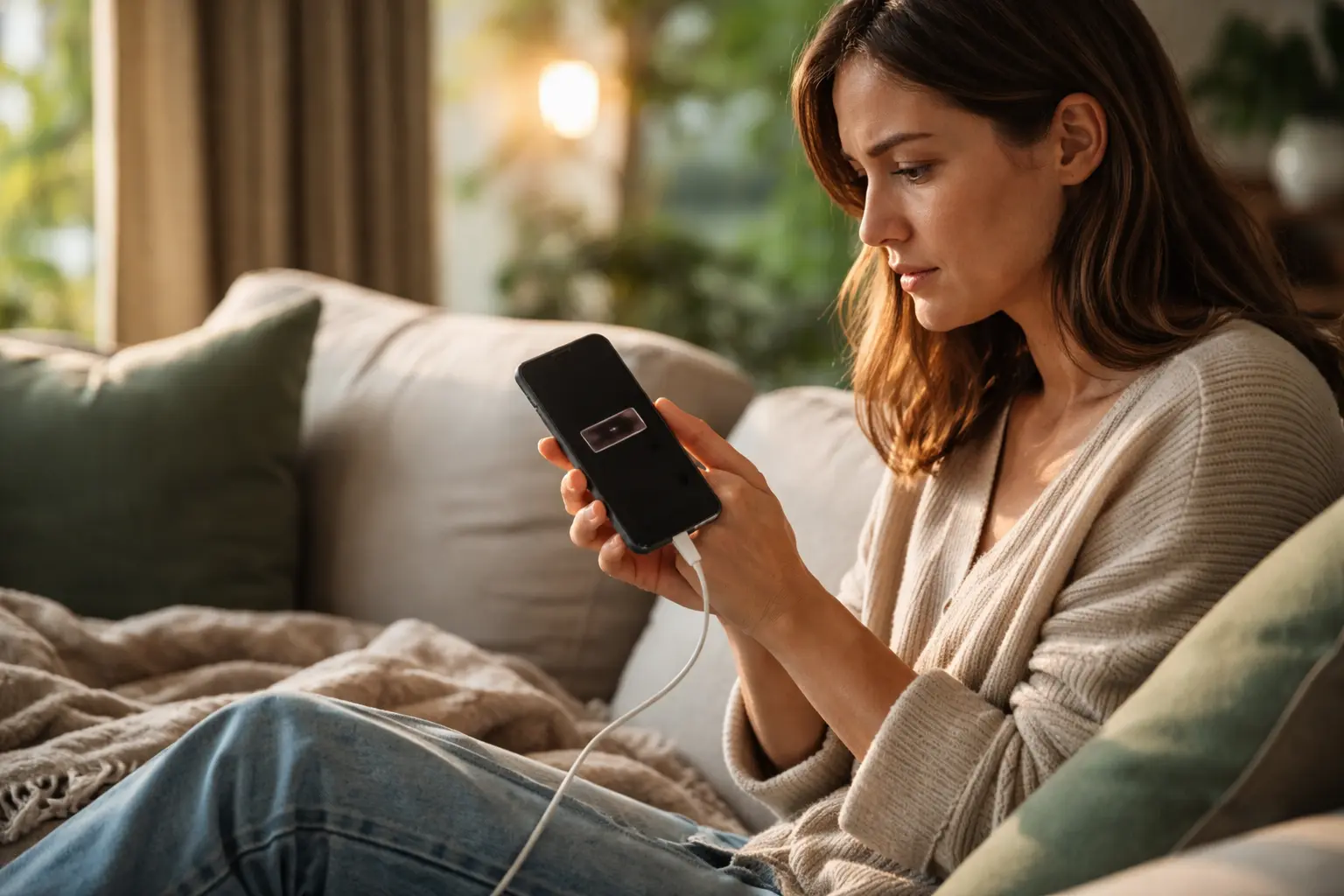
Your phone dies by 3pm even though you barely used it, and you are stuck hunting for a charger like your life depends on it, but here is how to extend smartphone battery life and actually keep your device alive all day.
Manage display brightness
Your screen is the biggest battery vampire on your phone, consuming up to 30 percent of your daily power. Picture this: you are scrolling through social media at full brightness in a dark room, draining your battery twice as fast as necessary. The fix is simple but requires awareness. Start by lowering your brightness to a comfortable level indoors where you do not need maximum visibility. Most young adults find 40 to 50 percent brightness works perfectly for indoor use. The real game changer is enabling adaptive brightness, which automatically adjusts your screen based on ambient light conditions. This means your phone dims itself in dimly lit spaces and brightens up outdoors without you thinking about it. Beyond that, ditch live wallpapers entirely. Those animated backgrounds look cool for about a week, then they just silently drain your battery in the background. Static wallpapers cost almost nothing in terms of power.
- Dim the screen indoors where bright light is not necessary.
- Turn on adaptive brightness to automatically adjust to lighting conditions.
- Avoid using live wallpapers that drain battery excessively.
Limit background app refresh
Apps do not stop working just because you are not actively using them. Instagram, TikTok, email, and weather apps are constantly refreshing in the background, pulling data and burning through your battery. Think of it like leaving your car running in the driveway all day. You are not driving it, but it is still consuming fuel. Background app refresh is the culprit. Open your settings and check which apps have this feature enabled. Most social media apps do not need real-time updates. Your Instagram feed does not need to refresh every five minutes when you are not looking at it. Disable background refresh for apps that are not critical like messaging or email if you do not need instant notifications. A practical example: if you have 15 apps with background refresh enabled, disabling it on just 10 of them can extend your battery life by 2 to 3 hours. Start with the apps you use least frequently and work your way up.
📘 Fix your day in under 2 minuteschoose where to begin:
Enable low power mode
Low power mode is your emergency ejection seat for battery life. When you activate it, your phone essentially puts itself on a diet, reducing performance to stretch battery life significantly. Here is what actually happens: your phone limits background activity, reduces animation smoothness, caps processor speed, and adjusts mail fetch intervals. The experience is slightly slower, but most young adults barely notice the difference in daily use. A real scenario: you are at a music festival with no charging station in sight, and your battery hits 20 percent. Instead of panicking, you flip on low power mode and suddenly you have another 4 to 5 hours of moderate use. The key is knowing when to use it strategically. Some people wait until their battery is critically low, but smart users turn it on at 50 percent when they know they will be away from a charger for extended periods. Your phone will still function normally for calls, messages, and browsing, just with slightly reduced performance and no background app activity draining power.
Manage app settings
Every app on your phone has settings that directly impact battery consumption, but most people never look at them. Location services are a massive drain. Apps like maps, weather, and social media constantly ping your GPS to know where you are. You do not need Instagram knowing your location 24/7. Go into settings and change location permissions to only while using the app. Notifications are another silent killer. Each notification wakes up your screen, lights up your display, and triggers processing. If you have 50 apps sending notifications, that is 50 unnecessary battery hits per day. Turn off notifications for apps that do not matter. You do not need alerts from shopping apps or games. Disable them ruthlessly. A practical example: one young adult reduced their app notifications from 40 to 8 and gained nearly 2 hours of battery life daily. Also check if apps are set to high refresh rates. Some apps refresh content every few seconds when you could set them to refresh every few minutes. These small tweaks compound into significant battery savings.
Use battery-saving modes
Beyond low power mode, many modern smartphones offer additional battery optimization features built specifically into their operating systems. Samsung devices have an ultra power saving mode that strips your phone down to essential functions only, extending battery life by up to 48 hours. Apple phones have optimized battery charging that learns your charging patterns and charges to 80 percent by default to preserve long-term battery health. These modes are not just gimmicks. They actually work by limiting processor performance, disabling certain radios, reducing screen refresh rates, and closing unnecessary background processes. The mistake most young adults make is ignoring these features entirely. You have powerful tools built into your phone that you are not using. A hypothetical scenario: you are traveling on a long road trip and your car charger is broken. Activating your phones battery optimization mode could mean the difference between staying connected and being completely unreachable. These modes also help preserve your battery health over time. Constant fast charging and high performance drain your battery capacity permanently. Using optimization modes strategically can extend your phones overall lifespan by months or even years.
Adjust display brightness, limit background app refresh, enable low power mode, manage app settings, and utilize battery-saving modes to extend smartphone battery life effortlessly.
Can using dark mode help conserve battery life?
Yes, dark mode can reduce battery consumption as darker colors require less power to display on OLED screens, leading to longer battery life.
Is it okay to let my phone charge overnight?
It is generally safe to charge your phone overnight, but it is recommended to maintain battery health by unplugging once fully charged to prevent unnecessary strain on the battery.
Others also read:
Disclaimer: This article is for informational purposes only and is not a substitute for professional medical advice. Always consult a healthcare professional for personal guidance.
This guide has been prepared and reviewed by the GlobalHealthBeacon editorial team and reflects current medical research as of 2026. It provides structured, evidence-based information to support informed health decisions.
